
Problem
XFDebug opens but does not show new log lines for a running Navigator Server (the viewer is nearly empty and not updating).
Quick fix — try first (≈1 minute)
Open XFDebugLog.exe.
Configure → Message Monitor (Modules/Monitor).
Find the Action/module that’s not producing entries (Server App, Render Action, Output Spooler, XiService, XiEvents, XiSpool, or the workflow action).
Uncheck / disable the Action → Apply / OK.
Wait 3–5 seconds, reopen Message Monitor, re-check / enable the Action → Apply / OK.
Confirm XFDebug shows live log lines.
Full recovery — delete XFDebug key (two ways)
Caution: Only delete the single registry key below. This fixes XFDebug monitoring state. If you are not comfortable editing the registry, ask Support.
A — Regedit (GUI)
Quit Navigator Server and close XFDebug.
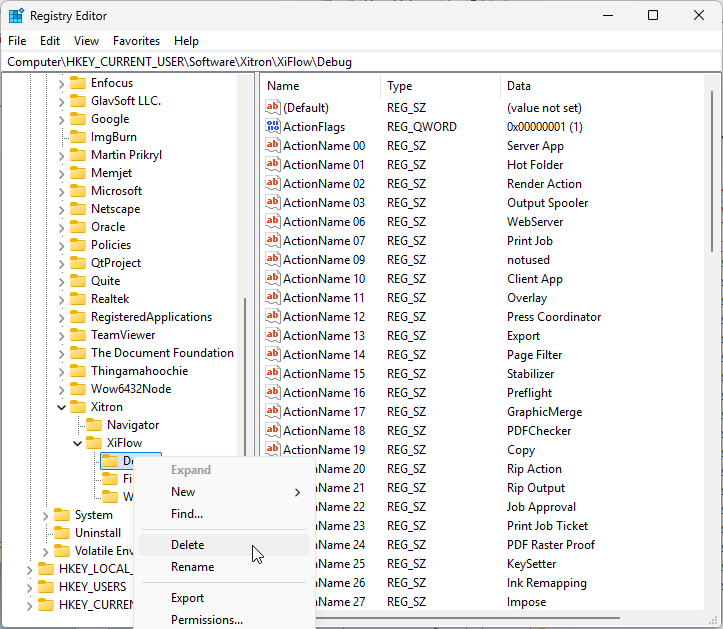
Run regedit.exe.
Navigate to:
HKEY_CURRENT_USER\SOFTWARE\Xitron\XiFlow\DebugRight-click Debug → Delete → confirm.
Start Navigator Server and wait for it to initialize.
Open XFDebugLog.exe.
Set Monitored Device to the hostname of the Navigator Server PC (do not use
.).Configure → Message Monitor → select the modules you want monitored → Apply.
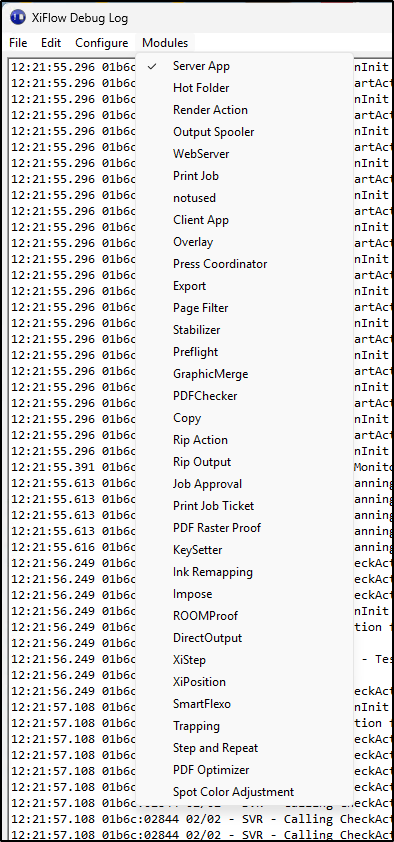
Verify XFDebug now streams live log lines.
Why: Setting the monitored device to . can trigger a mailslot creation error (Create Slot(...) FAILED ... error 5); using the server hostname avoids that.
B — Command line (Power users)
Quit Navigator Server and close XFDebug.
Open an elevated (Administrator) Command Prompt and run:
Start Navigator Server.
Open XFDebugLog.exe, set Monitored Device to the server hostname (not
.), Configure → Message Monitor → select modules → Apply.Verify live logs appear.
If it still fails
Reboot the PC and retry the steps.
If logs still do not appear, collect these files and contact Support:
XfDebug.log,clrip_*.log,XiService.log,XiEvents.log, appropriate Spooler log (DuraBolt/DuraFlex/XiSpooler), andNavigatorServer.log. Include a short note of the exact steps performed and any error messages (for exampleCreate Slot(...) FAILED ... error 5).