
The intended audience for this document is technical: technicians performing installation, configuration, training, or support for an end user customer on behalf of one of Xitron's dealers. This document walks you through selecting appropriate computers, preparing the operating system, and installing K2.
There are 3 things that you need to get right.
System requirements, the K2 computer operating system configuration, and the K2 installation.
You can find help with all of that in this document.
1. System requirements
You should make certain your K2 computer and the various client computers (Mac and/or Windows) are appropriate. Visit this requirements page to check.
2. Preparing the PC for K2 Installation (OS configuration)
Before installing, the target PC must be properly prepared. Failure to follow these guidelines may result in installation failures, licensing issues, or unstable system behavior. It may seem like a lot but this is actually the most important part of the installation.
Windows 11 preparation guide
3. K2 Installation Procedure
Preparation
Download the Installer:
K2-R2.2 Installation Package
Extract the contents of the downloaded 7z file using 7-Zip.
Do not use the default Windows extraction utility.
Do not run installer from:
- Network locations
- Mapped drives
- Temporary or compressed folders
To install the K2 Server, RIP, and Software Client:
- Right-click K2Installer.exe
- Select Run as administrator
Installer Wizard
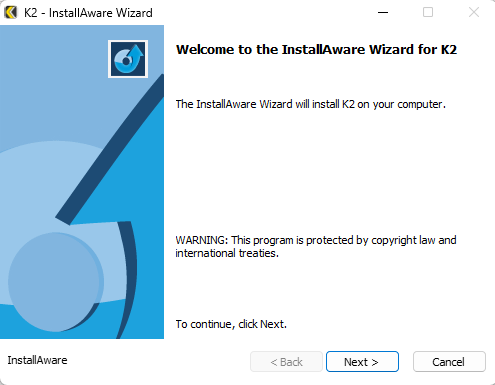
Step 1: Welcome Screen
Dialog: Welcome to the InstallAware Wizard for K2
Click Next to continue.
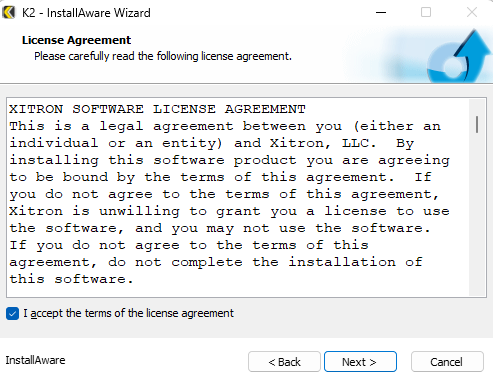
Step 2: License Agreement
- Select I accept the terms of the license agreement.
- Click Next.
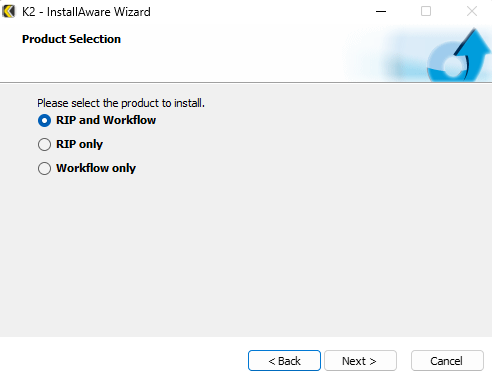
Step 3: Product Selection
To install the Server, RIP, and Software Client, select:
- RIP and Workflow (This is the standard K2 installation)
To install only the RIP engine, select:
- RIP only
To install only the workflow and server components (without a RIP), select:
- Workflow only
Click Next.
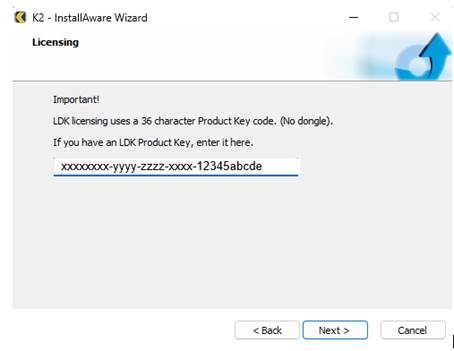
Step 4: Licensing
- Enter the 36-character Product Key in the provided field.
- Click Next.
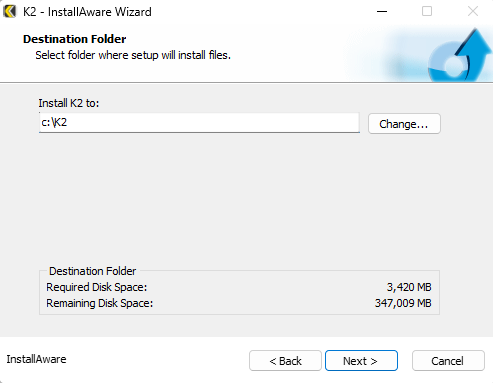
Step 5: Destination Folder
Verify that the installation path is set to:
C:\K2
If correct, click Next. (Do not install to a network drive or to a removable disk.)
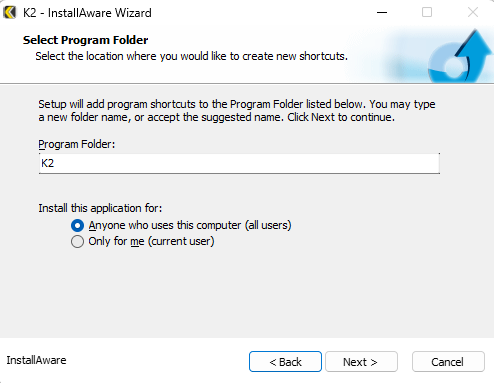
Step 6: Select Program Folder
- Accept the default Program Folder name: K2.
- Under Install this application for: ensure that
Anyone who uses this computer (all users) is selected. - Click Next.
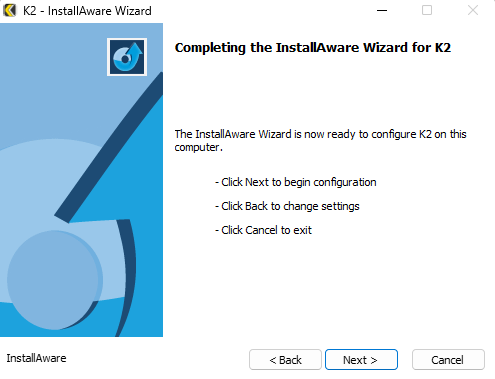
Step 7: Configuration Initialization
Dialog: Completing the InstallAware Wizard for K2
Click Next to begin configuring K2 on the local system.
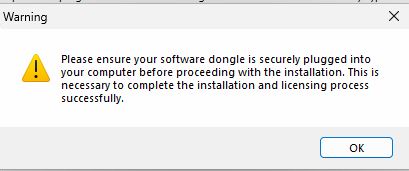
- It is critically important that the Rip Manager server dongle is plugged in and seen by the system to ensure the workflow components are licensed properly.
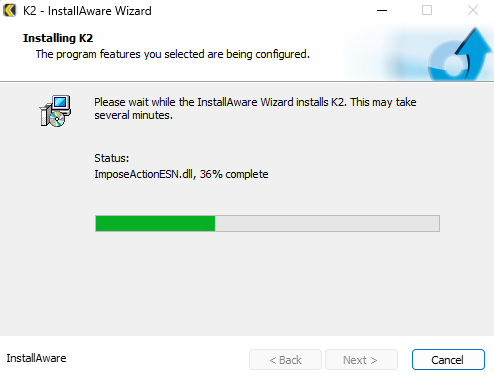
Step 8: Installing K2
Allow the installer to complete the installation process.
This step will take several minutes.
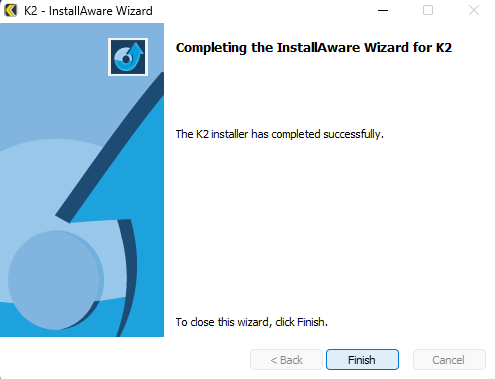
Step 9: Installation Complete
Dialog: Completing the InstallAware Wizard for K2
Click Finish to close the installer.
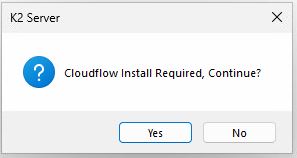
CloudFlow Installation
- After installation completes, launch the K2 Server.
- When prompted to install CloudFlow, click Yes.
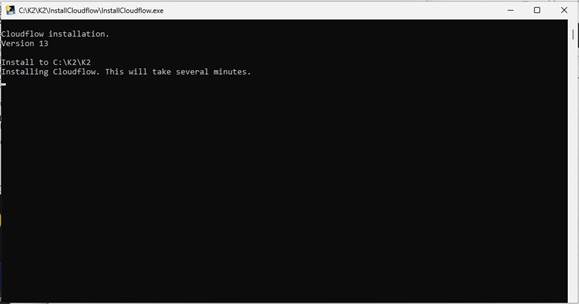
CloudFlow Installation Process
- A command-prompt–style window will appear, displaying real-time installation progress.
- This process may take several minutes.
Important:
Do not close this window. Closing it during installation will result in a failed CloudFlow installation.
Verifying CloudFlow Installation
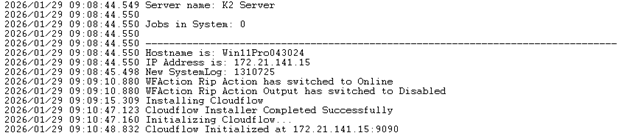
Open and review the Server Log to confirm successful installation and initialization.
A successful installation will include log entries similar to the following:
Installing CloudFlow
CloudFlow Installer Completed Successfully
Initializing CloudFlow
CloudFlow Initialized at <local PC static IP address>:9090
(Note: 9090 is the default port used by CloudFlow.)
Now run the Impostrip installer and install it at the default location.
Xitron's Impostrip Installer Guide
Ultimate's Impostrip Installer Guide
________________________________________________